Sale Price:
£2.50
Original Price:
£5.00
These presets have been specifically designed around the Fujifilm film simulations that their cameras produce like Acros. Being a Fujifilm user, it seemed like a logical starting point.
For the best results use these presets with RAW files.
In this Preset pack you will find 14 black and white presets, from subtle changes to dramatic contrasts.
I have included a variety of looks that should give you a good starting point to develop from. In some cases even finish with. These presets can also be modified to suit your own taste.
The presets are compatible and designed with the latest Lightroom Classic and Lightroom CC versions.
Please note that due to the nature of digital products, we cannot issue refunds so please make sure you have some knowledge of how presets work
If you have any questions at all please feel free to contact me HERE
How to use.
After downloading the zip file to the desired location simply double click to access the presets and save them to the required location.
Steps to Load Presets into Lightroom.
Open Lightroom Desktop on your computer.
From the menu bar, select File > Import Profiles & Presets.
In the Import dialog box that appears, navigate to the location where your preset files are saved (e.g., .XMP or .DNG files).
Select the presets you want to import and click Import.
Once imported, the presets will appear in the Presets panel in the Develop module.
These presets have been specifically designed around the Fujifilm film simulations that their cameras produce like Acros. Being a Fujifilm user, it seemed like a logical starting point.
For the best results use these presets with RAW files.
In this Preset pack you will find 14 black and white presets, from subtle changes to dramatic contrasts.
I have included a variety of looks that should give you a good starting point to develop from. In some cases even finish with. These presets can also be modified to suit your own taste.
The presets are compatible and designed with the latest Lightroom Classic and Lightroom CC versions.
Please note that due to the nature of digital products, we cannot issue refunds so please make sure you have some knowledge of how presets work
If you have any questions at all please feel free to contact me HERE
How to use.
After downloading the zip file to the desired location simply double click to access the presets and save them to the required location.
Steps to Load Presets into Lightroom.
Open Lightroom Desktop on your computer.
From the menu bar, select File > Import Profiles & Presets.
In the Import dialog box that appears, navigate to the location where your preset files are saved (e.g., .XMP or .DNG files).
Select the presets you want to import and click Import.
Once imported, the presets will appear in the Presets panel in the Develop module.
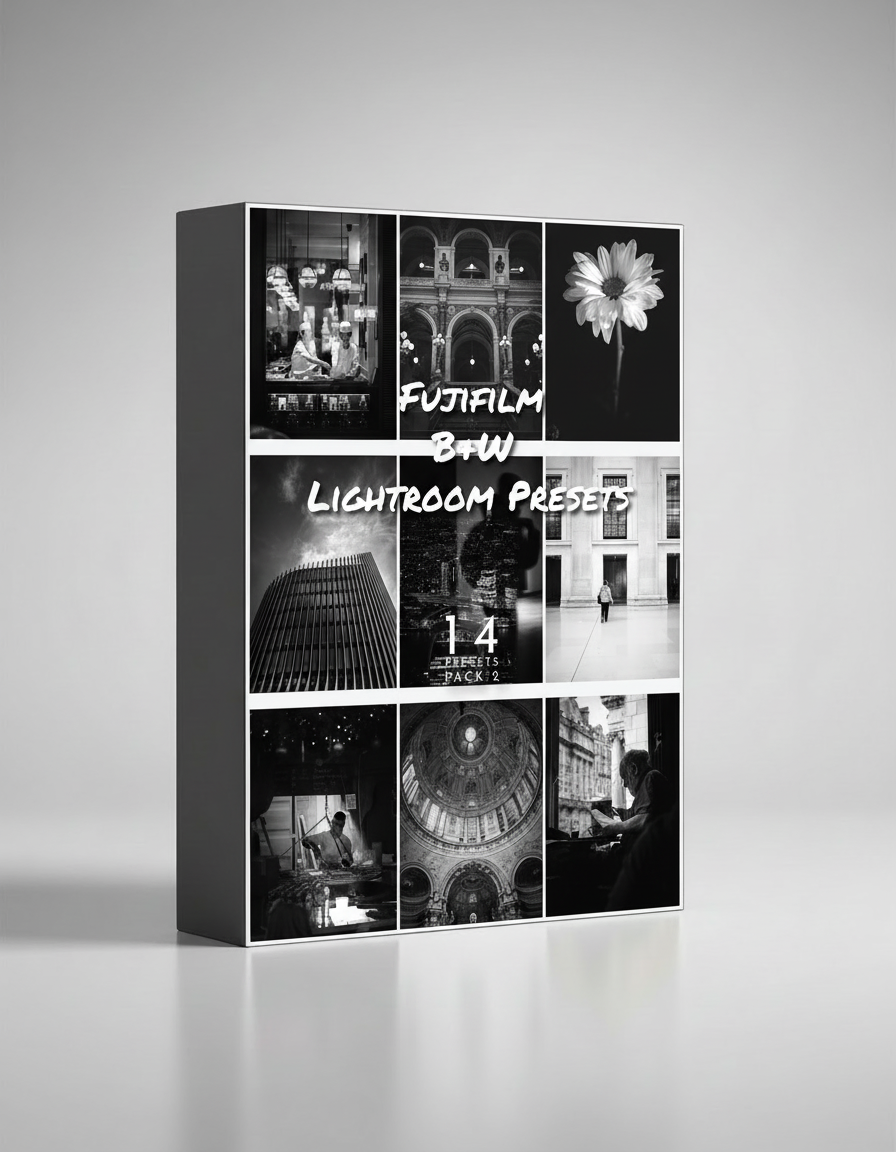 Image 1 of 6
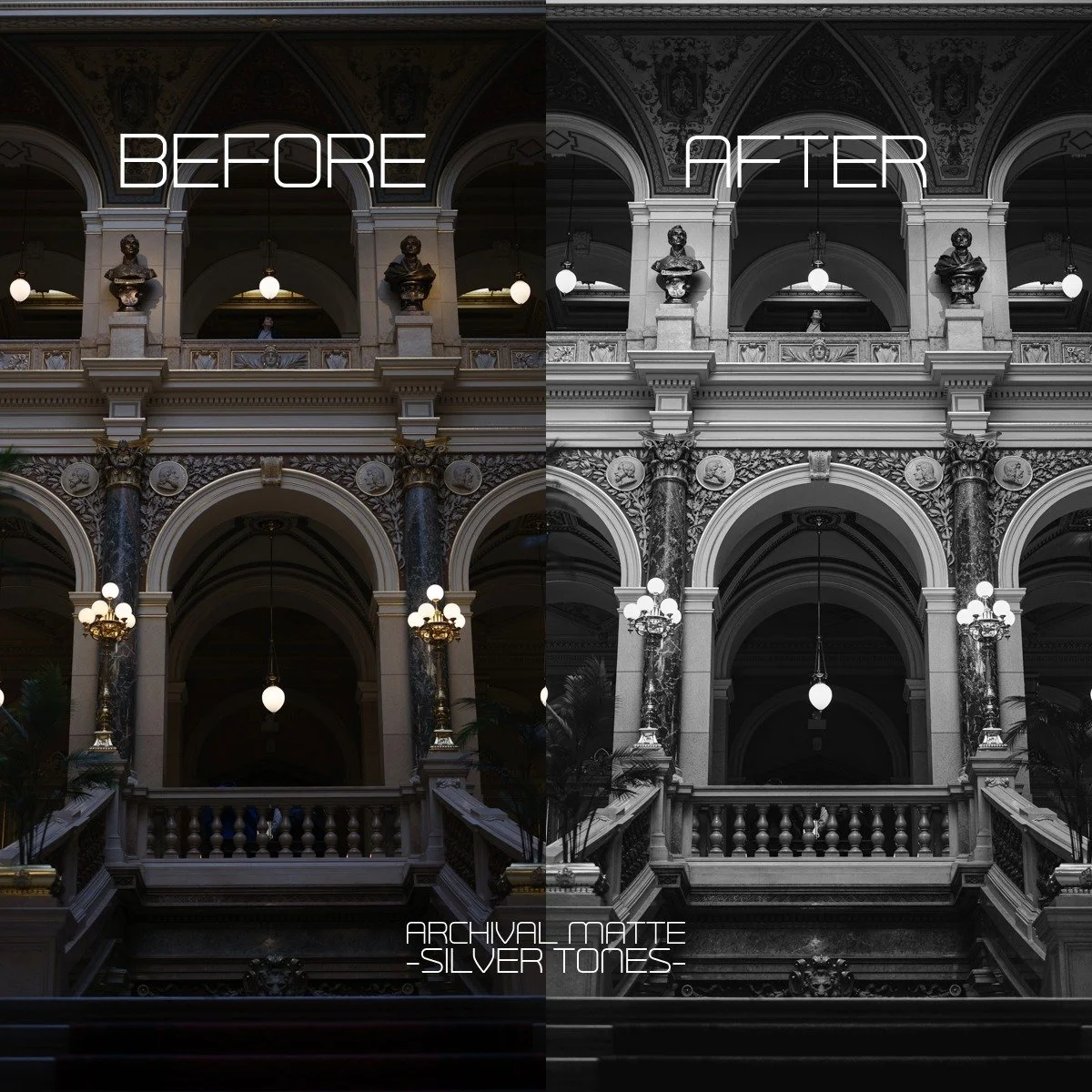 Image 2 of 6
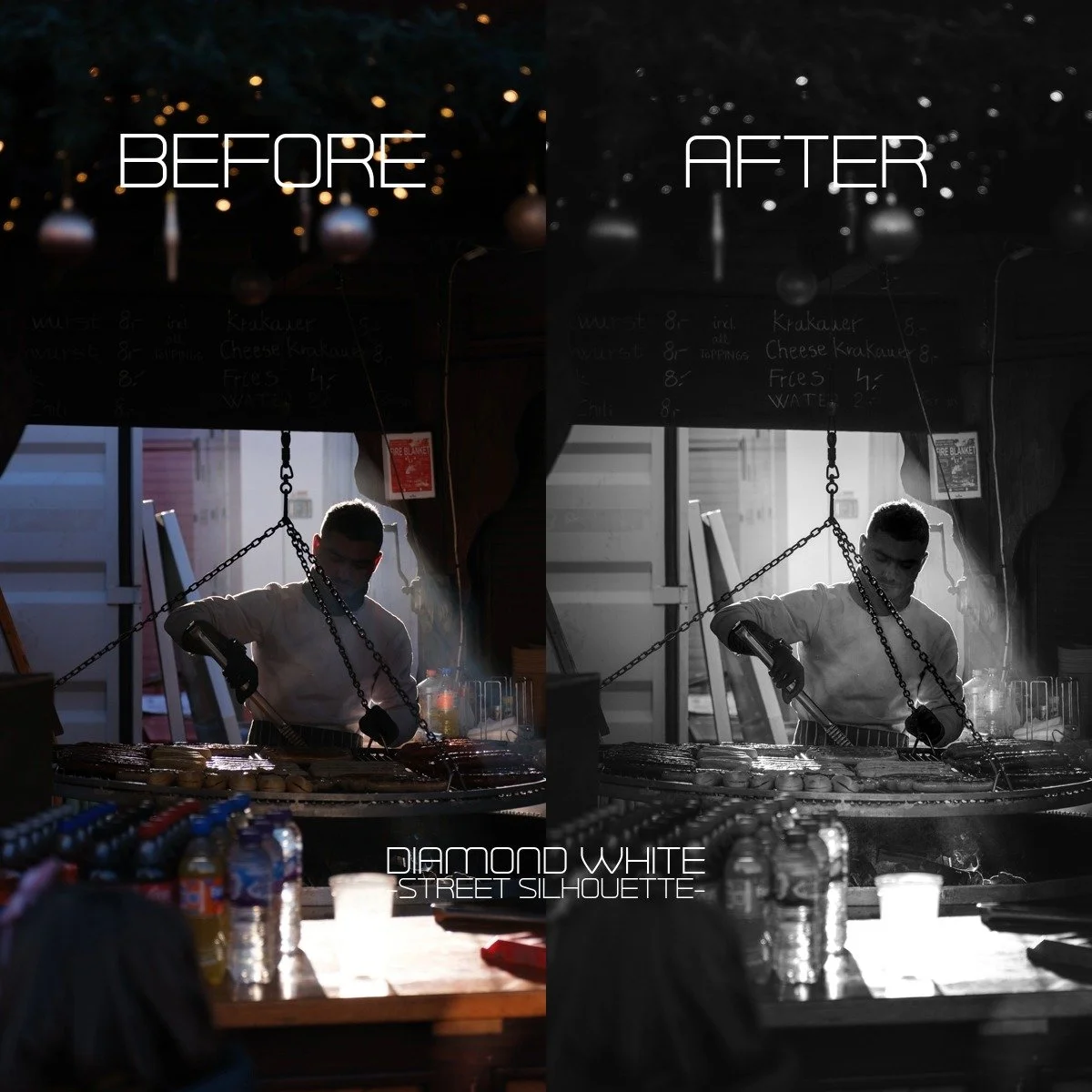 Image 3 of 6
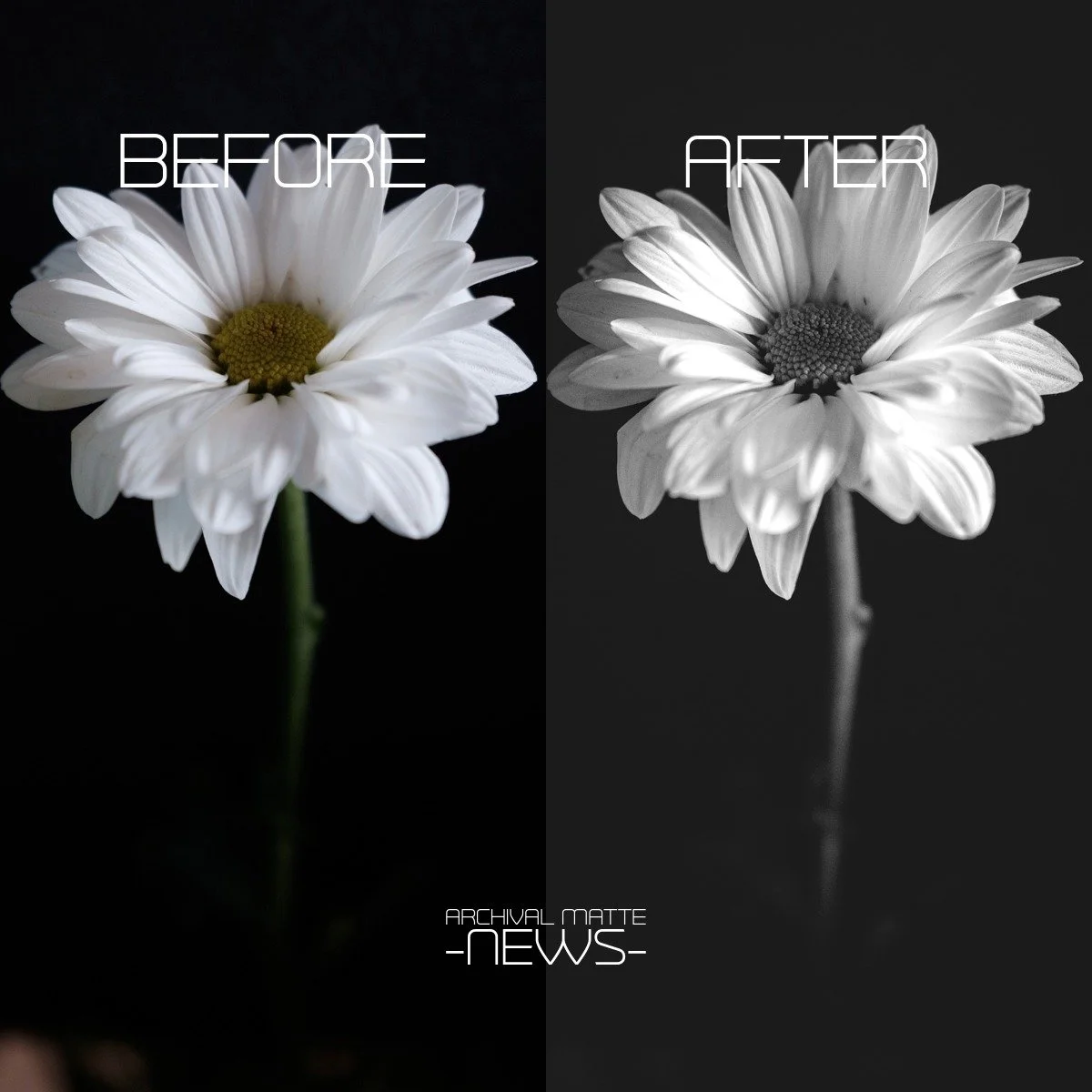 Image 4 of 6
 Image 5 of 6
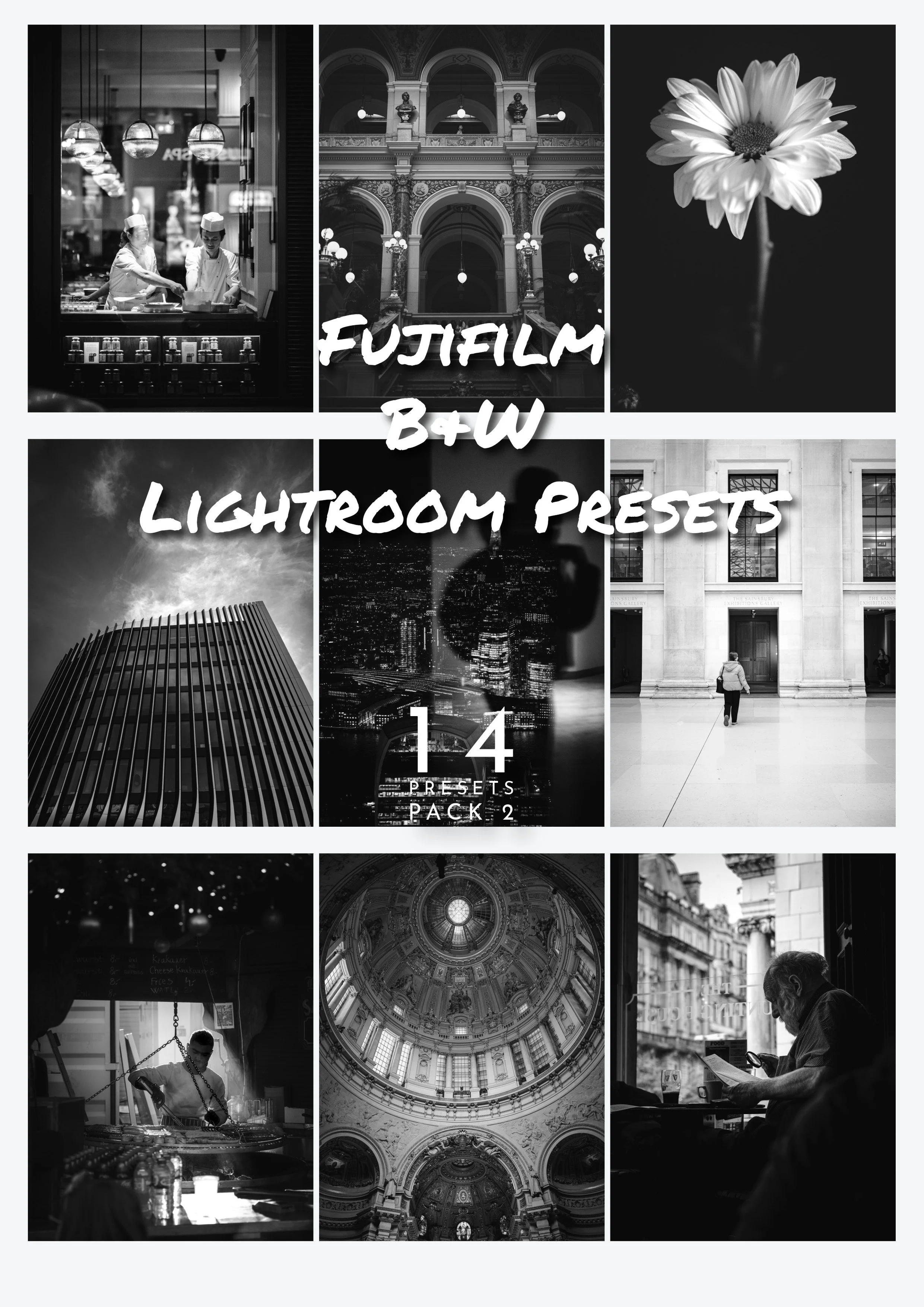 Image 6 of 6